

Project Management: 32 Effective and Free Excel Templates
Article Summary
📖 9 min readThis article makes the case for Excel in project management for freelancers and small agencies, far from complex and costly tools. It presents 32 templates to track tasks, costs, and time efficiently, highlighting Excel's ease of adoption and customization.
Key Points:
- Most freelancers and small agencies only use 20% of the features in complex project management tools — features Excel often handles better.
- Excel offers instant adoption by everyone, full workflow customization, and zero cost if you already have Microsoft 365 or LibreOffice.
- Contrary to popular belief, Excel remains a powerful tool for getting immediate clarity on project tasks, costs, and time.
- Excel templates let you manage projects effectively without the steep learning curve or friction of SaaS software.
- This article offers a curated selection of 32 Excel templates designed to cover the essentials of project management, from task tracking to budgeting.
- Teams of fewer than five people gain a significant advantage from Excel's simplicity and adaptability over bloated platforms.
Excel Isn’t Dead — It’s Just Misused
15 years of watching teams manage their projects have taught me one thing: most freelancers and small agencies don’t need a €200/month tool with 400 features. They need to see where their tasks, costs, and time stand. Right now. Without friction.
Excel delivers that. No steep learning curve, no 3-hour onboarding, no “your free trial expires in 7 days.” One file, your data, immediate clarity.
Here is my selection of 32 templates that cover the essentials — with an honest look at what Excel does well, and where its limits start to cost you.
Why Excel Templates Still Hold Up in 2025
Let’s flip the script. We keep hearing that “modern” project management tools have killed Excel. What if the opposite is actually happening in practice?
Instant adoption. Everyone knows how to open a .xlsx file. Your client, your intern, your accountant. Zero training required.
Total customization. Unlike a SaaS that imposes its own structure, Excel bends to your workflow. Want a “mental energy required” column? Add it in 10 seconds.
Zero cost. If you already have Microsoft 365 or LibreOffice, the template is free. Immediate ROI.
What nobody ever tells you is that most teams of fewer than 5 people only use 20% of the features in their complex tools. Excel often covers that 20% better than bloated software.

The 32 Templates, Organized by Real-World Use
My obsession with detail pushed me to categorize these templates not by generic type, but by concrete work situation — what you’re actually looking for when you need one.
Task Tracking and Progress
This is the core of every project. You need to know who’s doing what, what state it’s in, and by when.
The action plan template remains the most widely used: task, owner, deadline, status, priority columns. Simple. Effective. Printable for a client meeting in 30 seconds.
The milestone tracking template goes further. It visualizes the major project phases with percentage-completion indicators. Ideal for 3-to-6-month projects with intermediate deliverables.
The simplified Kanban template replicates the To Do / In Progress / Done logic in a spreadsheet. Not as smooth as a true visual Kanban, but functional for teams who refuse to adopt yet another tool.
The MoSCoW prioritization template helps you make hard calls when everything feels urgent. Must have, Should have, Could have, Won’t have — a decision grid that forces clarity.
Here’s where it gets interesting: these four templates cover 80% of a small team’s tracking needs. Everything else is comfort.
Cost and Budget Management
Money is where projects go off the rails. Not tasks — the budget.
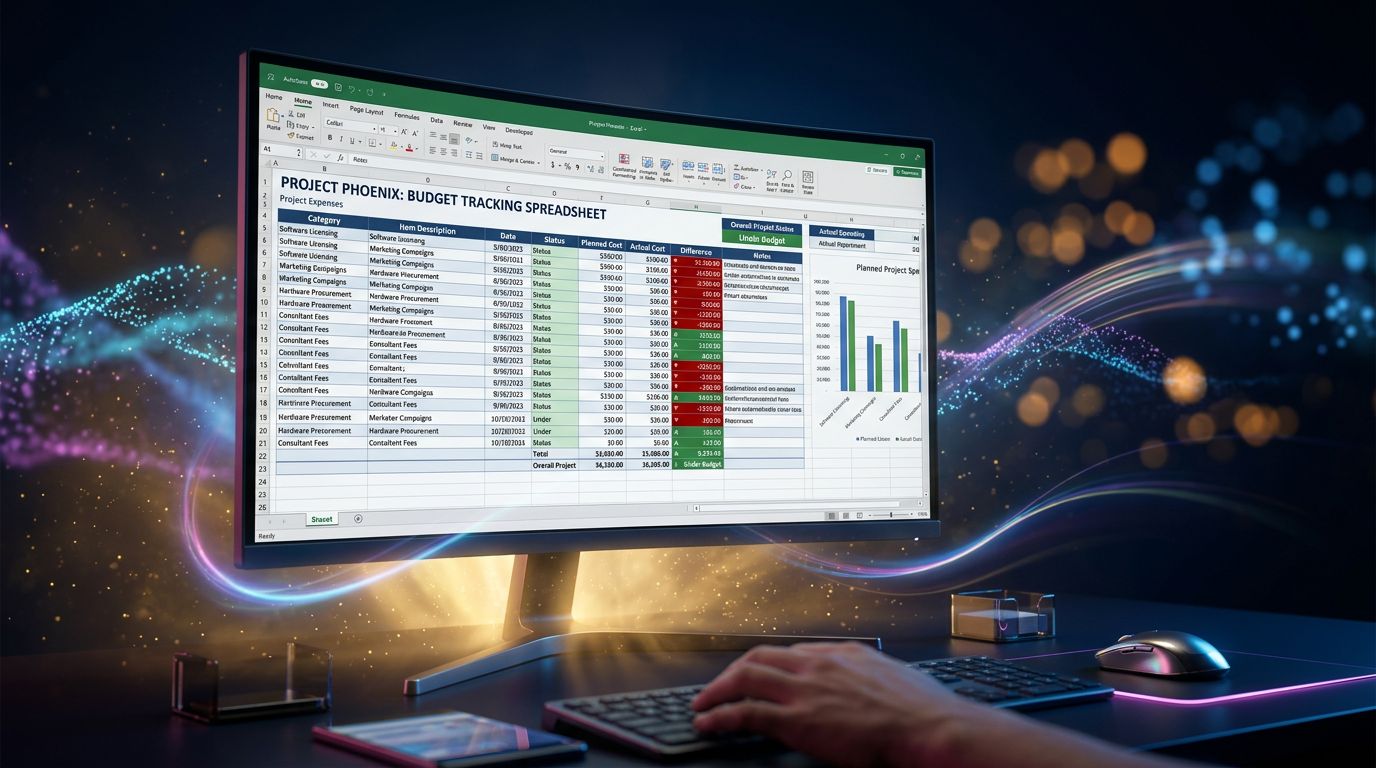
The project budget template breaks costs down by phase, resource, and category. It automatically calculates variances between planned and actual. Basic, but a lifesaver.
The expense tracking template is more granular: every expense is timestamped, categorized, and linked to a project or client. Perfect for freelancers managing multiple clients simultaneously.
The cost estimation template is useful at the quoting stage. Enter your hourly rates and time estimates per task, and it calculates the total budget. As much a sales tool as a management one.
The invoicing tracker flags outstanding invoices, late payments, and monthly revenue. Rudimentary compared to a real CRM, but sufficient for 3 to 10 active clients.
Time Tracking
Time is the resource everyone underestimates. And under-bills.
The weekly timesheet template is a classic: days in columns, projects in rows, automatic totals. Two minutes a day gives you a precise picture of how your time is distributed.
The time tracking by project template aggregates data across an entire project’s lifespan. It reveals time-consuming tasks, underestimated phases, and gaps between planned and actual time. A goldmine for improving your next quotes.
The client profitability template cross-references time spent with revenue generated. It answers the question few freelancers dare ask: is this client actually making me money?
My expert tip: start with that last one. It changes how you look at your client portfolio.
Planning and Communication
The Excel Gantt chart remains the most universal visual planning tool. Not as dynamic as an interactive Gantt, but sufficient for presenting a schedule to a client without forcing them to access your management tool.
The project meeting template standardizes your meeting notes: agenda, decisions made, follow-up actions, owners, deadlines. It turns every meeting into a clear list of commitments.
The risk register lists identified risks, their probability, their impact, and mitigation measures. Essential on complex projects — usually ignored until a risk actually materializes.
The client communication template maps out touchpoints, intermediate deliverables, and approvals. It prevents the “I last heard from the client three weeks ago, I hope everything’s fine” syndrome.
What Excel Can’t Do — and What That Costs You
Experience has taught me that being honest about a tool’s limitations is the best way to get value from it. So here’s what Excel will never do well.
Contextual memory. Excel doesn’t know that your client Dupont prefers deliverables in PDF, that their budget is tight in Q4, or that they never respond on Fridays. That knowledge lives in your head — and gets lost when you’re overwhelmed.
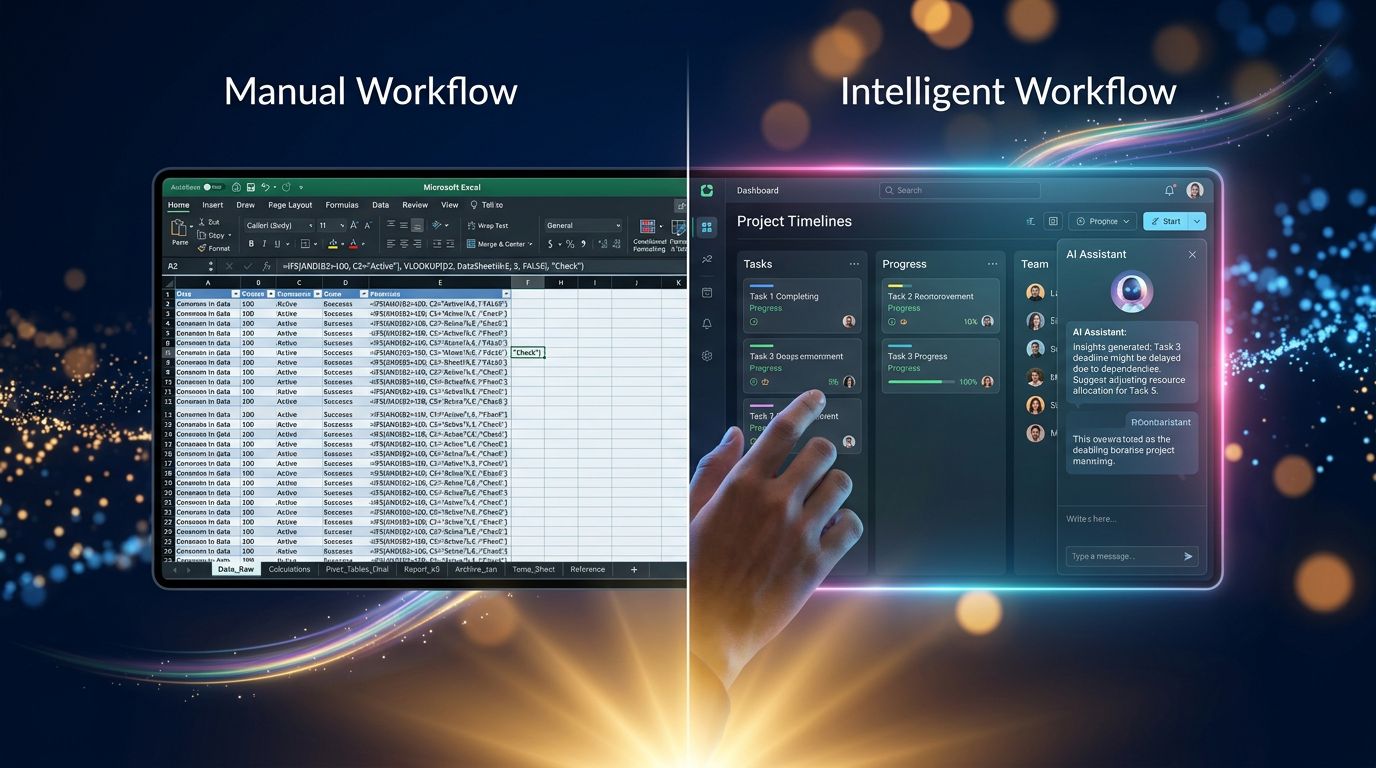
Real-time collaboration. Multiple people on the same Excel file always ends in project_v3_FINAL_truly_final.xlsx. Google Sheets partially solves the problem, but without granular permissions or per-task change history.
Automation. Excel won’t automatically follow up with a client, generate a weekly report, or alert you when a project is drifting. Everything is manual.
Multi-project overview. When you’re managing 8 projects simultaneously, Excel becomes a tab-navigation nightmare. A consolidated view simply doesn’t exist natively.
This isn’t a criticism — it’s reality. Excel is a data management tool, not a project management system. The distinction matters.
Three Insights to Get the Most Out of These Templates
After analyzing dozens of workflows, here’s what separates an Excel template that gets used from one that gets abandoned after two weeks.
1. One template = one use, not everything. The temptation is to build one mega-file that does it all. Resist. A task tracking file, a budget file, a time file. Separate. Maintainable.
2. Standardize before you customize. Use the template as-is for 3 weeks. Note what’s missing. Then adapt. You’ll avoid spending 4 hours customizing a tool you ultimately won’t use.
3. The template doesn’t replace the process. An empty Gantt chart doesn’t plan a project. A risk register with no weekly updates is an illusion of rigor. The tool is only worth something if the process exists behind it.
Beyond Templates: When to Move to the Next Level
Excel with solid templates is the foundation. But at some point — and you’ll know when that moment arrives — the cost of manual maintenance exceeds the comfort of simplicity.
Are you copying and pasting the same data into three different files? Losing time finding the context of a client between two meetings? Are your Excel templates becoming labyrinths that only you understand?
“The perfect tool doesn’t exist. There’s only the tool that fits your current stage of growth.” — A principle I apply to every recommendation.
That’s where tools like Nova-Mind take over. Not to replace your management logic — it’s sound, your Excel templates prove it — but to automate it, remember it, and make it collaborative without friction.
Persistent memory on your clients, integrated task tracking, CRM, automatic report generation: it’s your Excel workflow, but without the manual maintenance. At €39/month, the math is quick if you bill by the hour.
Conclusion: Start Simple, Evolve Fast
32 Excel templates is a serious arsenal to start or optimize your project management with zero investment. Download 3 or 4 that match your immediate situation. Test them for a month. Measure what they gain you in clarity and time.
And when you feel like you’re spending more time maintaining your files than working on your projects — that’s the signal. Not an emergency, a signal. You’re ready for the next step.
Immediate action: identify your number-one project management problem today. Task tracking? Budget? Time? Grab the corresponding template, set it up in 20 minutes, and use it tomorrow morning. One template used well beats ten templates “in the process of being set up.”
Complexity never arrives on its own. Clarity does — but only if you build it.
Share this article
Social networks
Analyze with AI

Charles Annoni
Front-End Developer and TrainerCharles Annoni has been helping companies with their web development since 2008. He is also a trainer in higher education.